


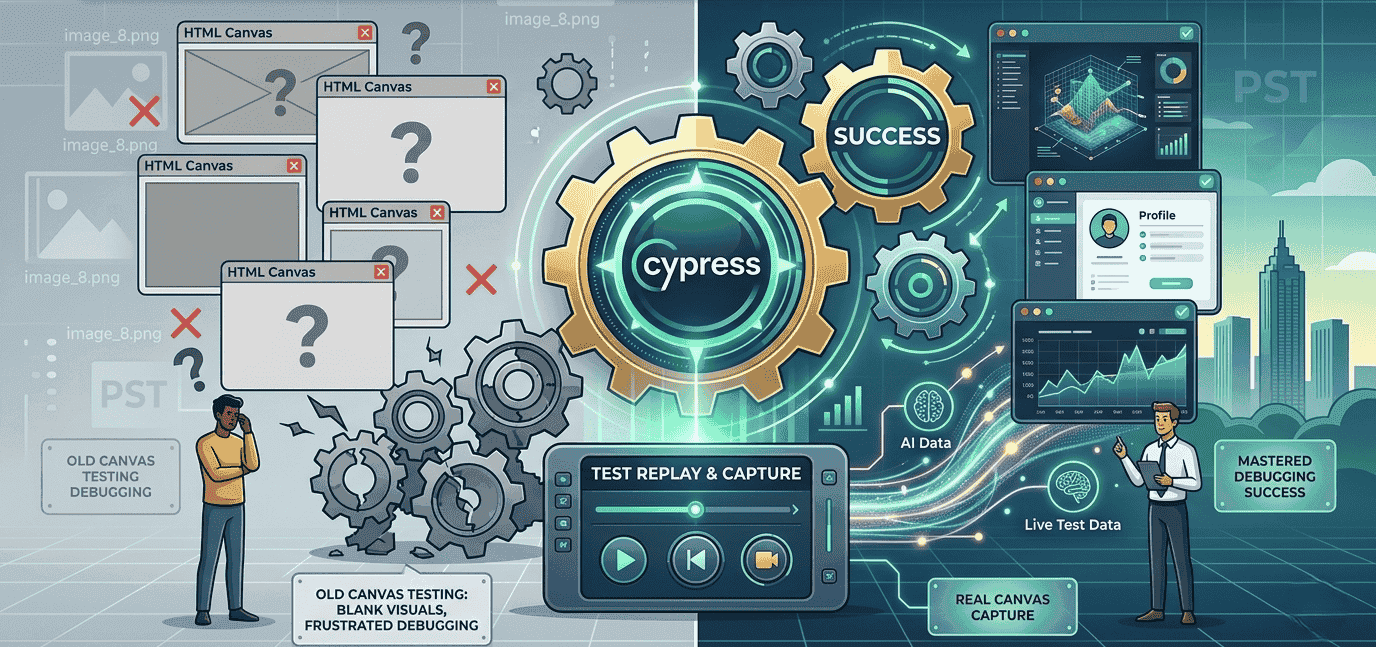
Why Debugging Canvas Elements Was Difficult

Canvas elements do not behave like normal HTML elements. They do not have a clear DOM structure, which makes them harder to inspect during tests.
Before this update, failed tests often showed empty screenshots instead of real canvas content. Developers had to rely on console logs, track JavaScript errors, and review network requests to find the issue.
This created problems when dealing with:
- UI changes
- Broken canvas interactions
- Incorrect canvas properties
How Cypress Test Replay Improves Canvas Testing
Cypress Test Replay records each step of your test inside the Chrome browser. It now includes full support for canvas visuals.
During a test run, you can:
- View real canvas content
- Check step-by-step screenshots
- Track JavaScript errors and network requests
Canvas Capture Cypress: How It Works?
The canvas capture Cypress feature records visual snapshots of the canvas during each test step. These snapshots are stored within the viewport and aligned with the page’s HTML and CSS, helping developers clearly track visual changes and debug issues more effectively.
This allows you to:
- See when a problem starts
- Understand how the UI behaves
- Detect issues in canvas interactions
It also improves canvas automation and supports better visual testing, including more reliable visual regression test results.
Benefits of Cypress Canvas Testing
Cypress canvas testing helps teams work faster and with more confidence, which is essential as companies trade startup heroics for professional systems. Developers can clearly see what happens during failures instead of guessing.
It also improves accuracy. Even small UI changes or issues with canvas content can be detected early. With Cypress Cloud, teams can review results across CI pipelines without rerunning tests locally.
How Do You Test Canvas Elements in a Cypress End-to-End Test
To test canvas elements in Cypress, you need to focus on both behavior and visuals. Since Canvas does not expose a normal DOM structure, testing requires a different approach.
Start by interacting with the canvas like a user would. This includes simulating clicks or movements and checking how the app responds. Then, use Cypress Test Replay to review what happened during the test run.
For better results:
- Use Canvas Capture Cypress to see real visuals
- Monitor JavaScript errors and network requests
- Validate changes through visual testing instead of DOM checks
Some teams also compare Cypress with tools like Playwright, but Cypress now offers strong built-in support for canvas debugging, making it a reliable choice for most projects.
Best Practices for Cypress Canvas Testing
To improve your results:
- Use the latest Cypress version
- Enable Cypress Test Replay
- Review screenshots and console logs
- Monitor network requests
- Validate canvas properties and interactions
FAQ: Cypress Canvas Testing
What is Cypress Canvas testing?
It is the process of testing Canvas elements using Cypress with visual debugging support.
How does Cypress Test Replay help?
Cypress Test Replay shows step-by-step visuals, making debugging canvas elements easier.
What is Canvas Capture Cypress?
It is a feature that records real-time canvas content during tests.
Key Takeaway
Cypress canvas testing is no longer limited by poor visibility. With Cypress Test Replay and canvas capture, developers can fully understand failures and fix issues faster.
Building something in tech? Peach State Tech helps Georgia startups and innovators get discovered through stories that reach the right audience. Get featured and grow your visibility today.